anyuianyui
Home
Getting Started
Documentation
Download
Feedback
  • English
  • 简体中文
Home
Getting Started
Documentation
Download
Feedback
  • English
  • 简体中文
  • Setup

    • Installation
  • Core Concepts

    • Introduction
    • Design
    • Font
    • Hide and Lock
    • Resource Management
    • Flag and State
  • Animation

    • Widget Animation
    • Screen Load Animation
    • GIF Animated Image
    • Lottie Animation
  • Higher Order Component

    • State Button
    • Label Slider
    • Value Slider
    • Check Group & Radio Group
    • StatusBar
    • NavigateBar
    • Drawer
  • Advanced Features

    • Layout
    • Use External Image File as Source
    • Template Component
    • Global Components
    • Screen Management
    • Communication Commands and Events
  • Development

    • Build Mode
    • Code Transplant
  • Technical Support

    • FAQ

Follow these steps to use a font.

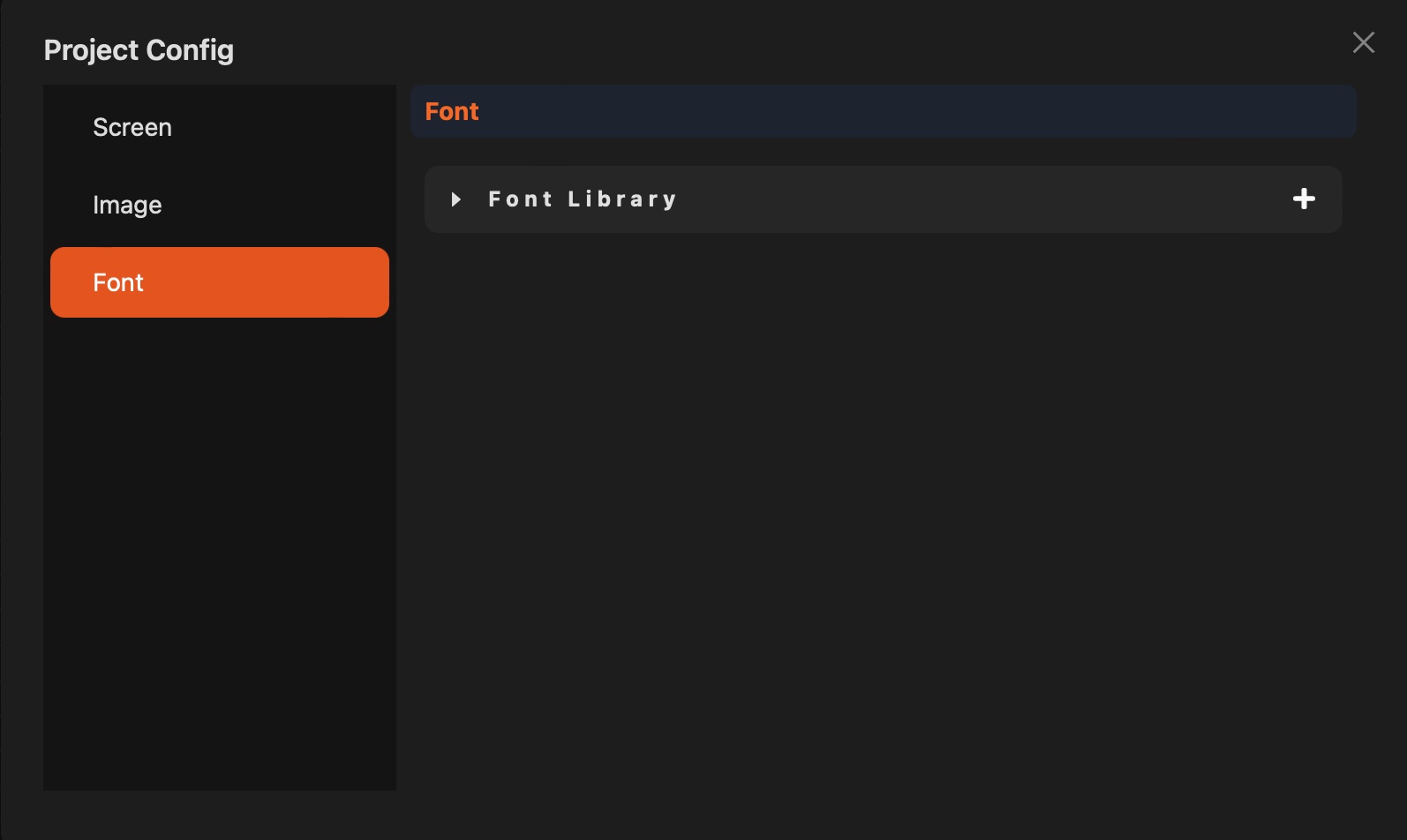
  • Add the font in Font Management.

  • Go to Project config... -> Font.

project_config_font

  • Create a font library.

create_font_library

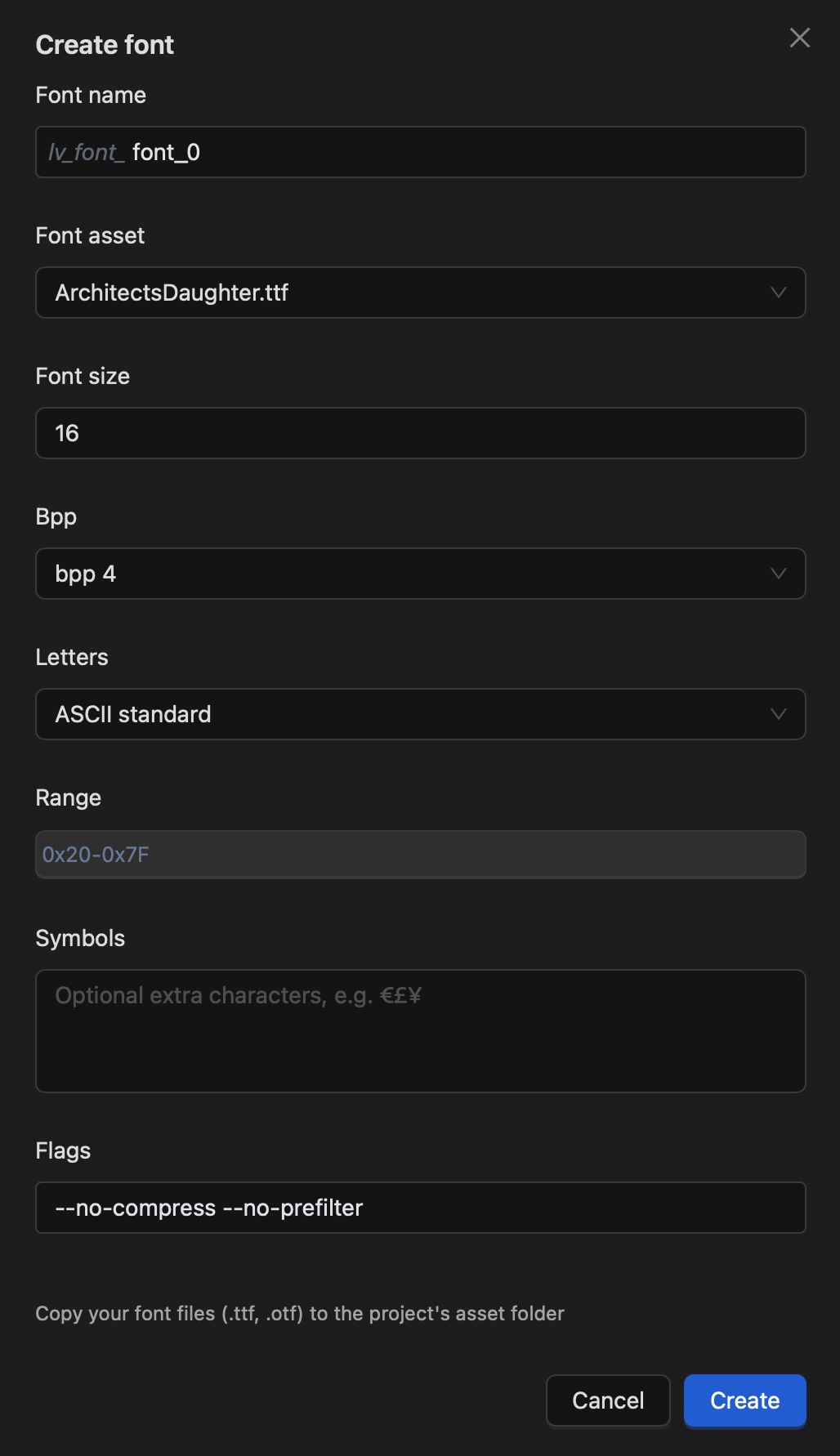
  • Fill in the font library settings.
    • Font name: The name of the font library. It is also part of the generated font variable name.
    • Font asset: The font file used by this library. Add it to Font Management first.
    • Font size: The font size to use.
    • Bpp: Bits per pixel for the font.
    • Letters: Preset letters included in the font.
    • Range: Character range included in the font.
    • Symbols: Additional characters included in the font.
    • Flags: Extra options for font conversion. The default value is --no-compress --no-prefilter.
      • --no-compress: Do not compress the font.
      • --no-prefilter: Do not prefilter the font.

For most users, the most important items are:

  • Font name: Use a meaningful name.
  • Font asset: Select the correct font file.
  • Range and/or Symbols: At least one of them must not be empty.

If you are not familiar with the other options, keep their default values.

Prev
Design
Next
Hide and Lock